

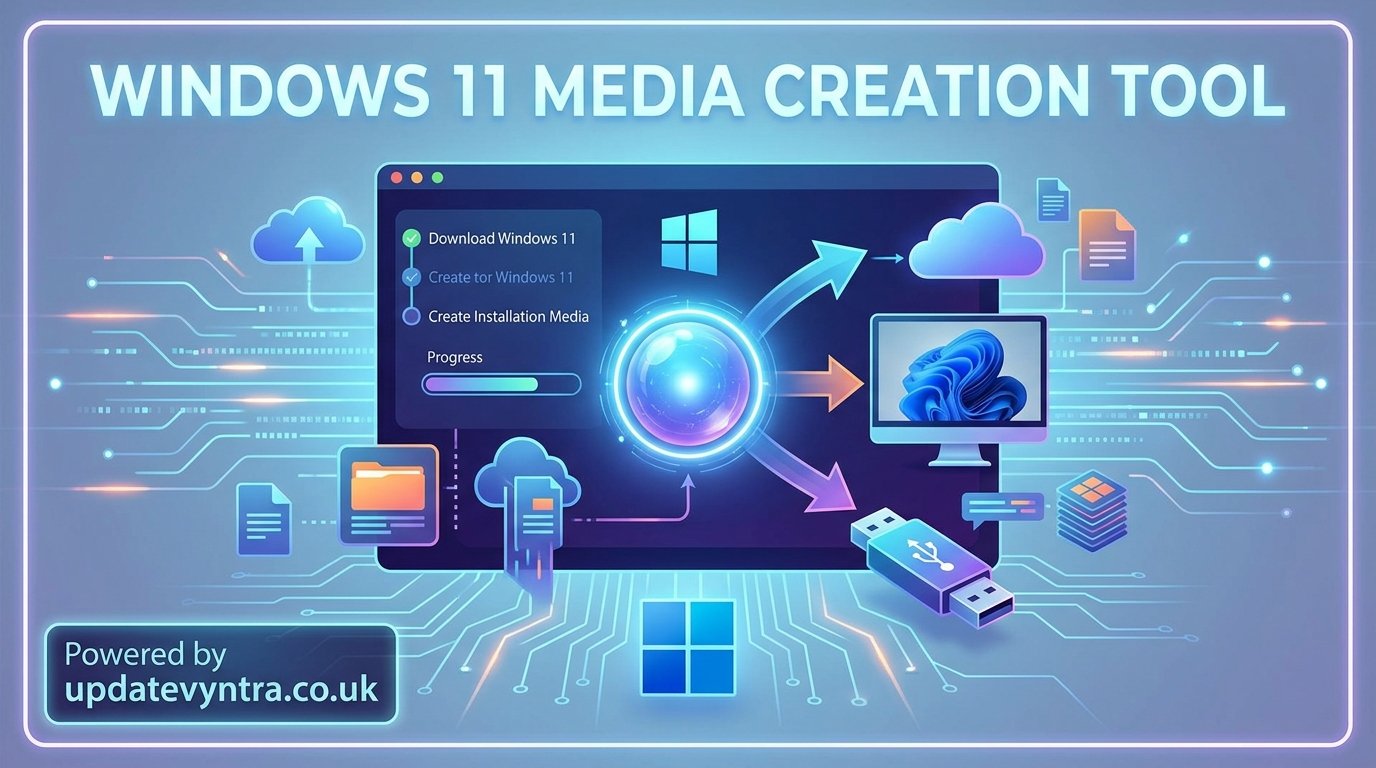
The Windows 11 Media Creation Tool is an official utility designed to help users download and install Windows 11 in a structured and secure way. It is commonly used to create installation media such as bootable USB drives or ISO files, which can then be used for system upgrades, fresh installations, or recovery purposes. This tool is especially important for users who want a clean, reliable method of installing the operating system without depending on third-party sources.
Developed by Microsoft, the tool ensures that users always receive an authentic and updated version of Windows 11 directly from official servers. It removes the complexity of manually searching for installation files and reduces the risk of corrupted or unsafe downloads. Because of its simplicity and reliability, it has become one of the most widely used utilities for Windows installation tasks.
In modern computing environments, operating system stability and security are essential. The Windows 11 Media Creation Tool plays a key role in maintaining both by offering users a trusted method to install or repair their systems. Whether upgrading from an older version or setting up a new device, it provides a consistent and user-friendly installation experience.
What Windows 11 Media Creation Tool Actually Is
The Windows 11 Media Creation Tool is a small executable program that connects directly to Microsoft’s official servers to download the latest version of Windows 11. It is designed to guide users through the installation process in a simplified way, without requiring advanced technical knowledge. Once launched, it prepares the system for either an upgrade or installation media creation.
At its core, the tool functions as a bridge between the user and the official Windows installation files. Instead of manually handling ISO downloads or complex boot configurations, users can rely on the tool to automate these tasks. It ensures that the correct edition, language, and architecture of Windows 11 are selected based on system compatibility and user preferences.
This tool is particularly useful because it standardizes the installation process. It reduces the chances of errors caused by incorrect file versions or incomplete downloads. By handling everything through a guided interface, it makes Windows 11 installation accessible even to users who are not familiar with system-level operations.
Development and Role of Microsoft in the Tool’s Evolution
The Windows 11 Media Creation Tool is part of a long line of official installation utilities developed by Microsoft. Over the years, Microsoft has refined its operating system deployment tools to make installation more efficient and secure for users worldwide. The Windows 11 version represents the latest evolution of this approach, focusing on simplicity and cloud-based delivery.
In earlier Windows versions, installation often required physical discs or complex ISO handling. Microsoft gradually shifted toward digital distribution, and the Media Creation Tool became a central part of that transition. With Windows 11, the tool is tightly integrated with modern update systems, ensuring users always receive the most recent and stable build of the operating system.
This evolution reflects Microsoft’s broader strategy of improving accessibility and security. By providing a single official tool for downloads and installations, the company reduces dependency on unofficial sources and helps maintain system integrity across millions of devices globally.
Core Features and Functional Capabilities
One of the most important features of the Windows 11 Media Creation Tool is its ability to create bootable USB drives. These drives can be used to install Windows 11 on any compatible computer, making them especially useful for system recovery or new device setup. The tool automatically formats and configures the USB drive to ensure it is bootable.
Another key capability is the creation of ISO files. These files contain a complete image of the Windows 11 installation environment and can be stored for future use. Users can mount them virtually or write them to DVDs or USB drives later. This flexibility allows users to choose how and when they want to install the operating system.
The tool also supports direct system upgrades. Instead of reinstalling Windows manually, users can upgrade their existing operating system while keeping files and applications intact. This feature makes the process smoother and reduces downtime, especially for users who rely on their devices for daily work or study.
System Requirements and Compatibility Considerations
Before using the Windows 11 Media Creation Tool, it is essential to ensure that the system meets the requirements for Windows 11 installation. These requirements typically include a compatible 64-bit processor, sufficient RAM, and adequate storage space. Without meeting these conditions, installation may not proceed successfully.
Compatibility is also determined by security features such as TPM 2.0 and Secure Boot. These requirements are part of Windows 11’s enhanced security architecture and must be enabled in the system BIOS or UEFI settings. The tool itself does not bypass these requirements, as it is designed to enforce official installation standards.
A stable internet connection is also necessary because the tool downloads large installation files directly from Microsoft servers. In addition, external storage devices used for installation must have enough capacity and should not contain important data, as they will be formatted during the process.
How the Tool Downloads and Prepares Installation Media
When the Windows 11 Media Creation Tool is launched, it begins by connecting to Microsoft’s servers to retrieve the latest installation files. It then verifies system compatibility and determines the appropriate version of Windows 11 to download. This ensures that the installation media is tailored to the user’s device.
If the user selects a USB drive, the tool automatically formats the device and writes the installation files in a bootable structure. This process includes configuring system files, boot sectors, and setup environments so that the USB can be used to start a computer and install Windows 11 from scratch.
When an ISO file is selected instead, the tool packages all installation data into a single downloadable file. This ISO can later be used for virtual machines or external installation media. In both cases, the tool ensures that the installation package is complete, verified, and ready for use without requiring manual configuration.
Using the Tool for Windows 11 Upgrade Process
One of the most common uses of the Windows 11 Media Creation Tool is upgrading an existing Windows system. Users running compatible versions of Windows can initiate an in-place upgrade that replaces the older operating system with Windows 11 while preserving personal files and applications.
During this process, the tool checks system readiness and downloads the required files in the background. It then guides the user through installation steps, ensuring that the upgrade process is smooth and uninterrupted. This makes it an ideal solution for users who want to move to Windows 11 without performing a full reinstallation.
However, it is always recommended to prepare the system before upgrading. This includes ensuring sufficient storage space and maintaining a stable power source during installation. While the tool is designed for reliability, unexpected interruptions can still affect the upgrade process.
Clean Installation and System Reinstallation Scenarios
The Windows 11 Media Creation Tool is widely used for clean installations, where the operating system is installed on a completely fresh system. This method removes all previous data and provides a clean environment, which often results in improved performance and stability.
Reinstallation is another important use case. When a system becomes slow, corrupted, or unstable, reinstalling Windows 11 using bootable media can restore it to working condition. This method is often preferred when system recovery options are not sufficient or available.
Clean installation also gives users full control over disk partitions and system configuration. It allows them to start fresh without leftover files from previous installations. This is particularly useful for advanced users and technicians who need optimized system performance.
Common Issues and Troubleshooting During Use
Although the Windows 11 Media Creation Tool is generally reliable, users may encounter certain issues during use. One common problem is interrupted downloads caused by unstable internet connections. In such cases, restarting the tool or switching to a more stable network often resolves the issue.
Another issue involves USB detection errors. Sometimes the tool may not recognize the connected USB drive due to formatting problems or insufficient storage capacity. Ensuring that the drive is properly formatted and meets the minimum requirements usually fixes this issue.
Compatibility errors can also occur if the system does not meet Windows 11 requirements such as TPM 2.0 or Secure Boot. These issues are not caused by the tool itself but by hardware limitations. Checking BIOS settings and system specifications is often necessary to resolve them.
Conclusion and Final Thoughts on the Tool
The Windows 11 Media Creation Tool remains one of the most reliable methods for installing, upgrading, or reinstalling Windows 11. Its official nature ensures that users receive secure and authentic installation files directly from trusted servers, reducing risks associated with third-party downloads.
By simplifying complex installation processes into a guided experience, the tool makes Windows 11 accessible to both beginners and advanced users. Whether creating bootable media or performing system upgrades, it delivers consistent and dependable results across different use cases.
Overall, the tool reflects the ongoing commitment of Microsoft to provide secure, efficient, and user-friendly solutions for operating system deployment. It continues to be an essential utility for anyone looking to install or maintain Windows 11 in a safe and structured way.
