

If your computer takes forever to start, you’re definitely not alone. A slow startup can turn a quick task into a frustrating wait, especially when you’re in a hurry. The good news is that you don’t always need to replace your computer or reinstall Windows to solve the problem. In many cases, a few simple changes can significantly improve startup speed.
Windows can become slower over time because of unnecessary startup programs, outdated drivers, low storage space, or background services that consume system resources. Understanding the cause is the first step toward finding the right solution.
In this guide, you’ll learn how to fix slow startup Windows with practical and beginner-friendly methods. Whether you’re using Windows 10 or Windows 11, these tips can help reduce boot time and improve your computer’s overall performance.
Why Windows Starts Slowly
Before fixing the problem, it’s helpful to understand why your computer is taking longer than usual to boot. Every time you power on your PC, Windows loads essential system files, drivers, startup programs, and background services. If too many things load at once, startup naturally becomes slower.
One of the most common reasons is having too many applications launching automatically. Many programs add themselves to the startup list during installation without asking. As more software is installed over time, Windows has to load more programs before you’re able to use your computer.
Another common reason is an aging hard drive. Traditional HDDs are much slower than modern SSDs, and if your computer still uses an HDD, startup times can be several times longer. Fragmented drives, insufficient free storage, outdated drivers, Windows updates, and malware can also contribute to slow boot performance.
Hardware limitations also matter. Computers with limited RAM or older processors often struggle to handle modern software, making startup noticeably slower than newer systems.
How to Fix Slow Startup Windows
Fortunately, there are several effective ways to speed up Windows startup. You don’t need advanced technical knowledge for most of these solutions.
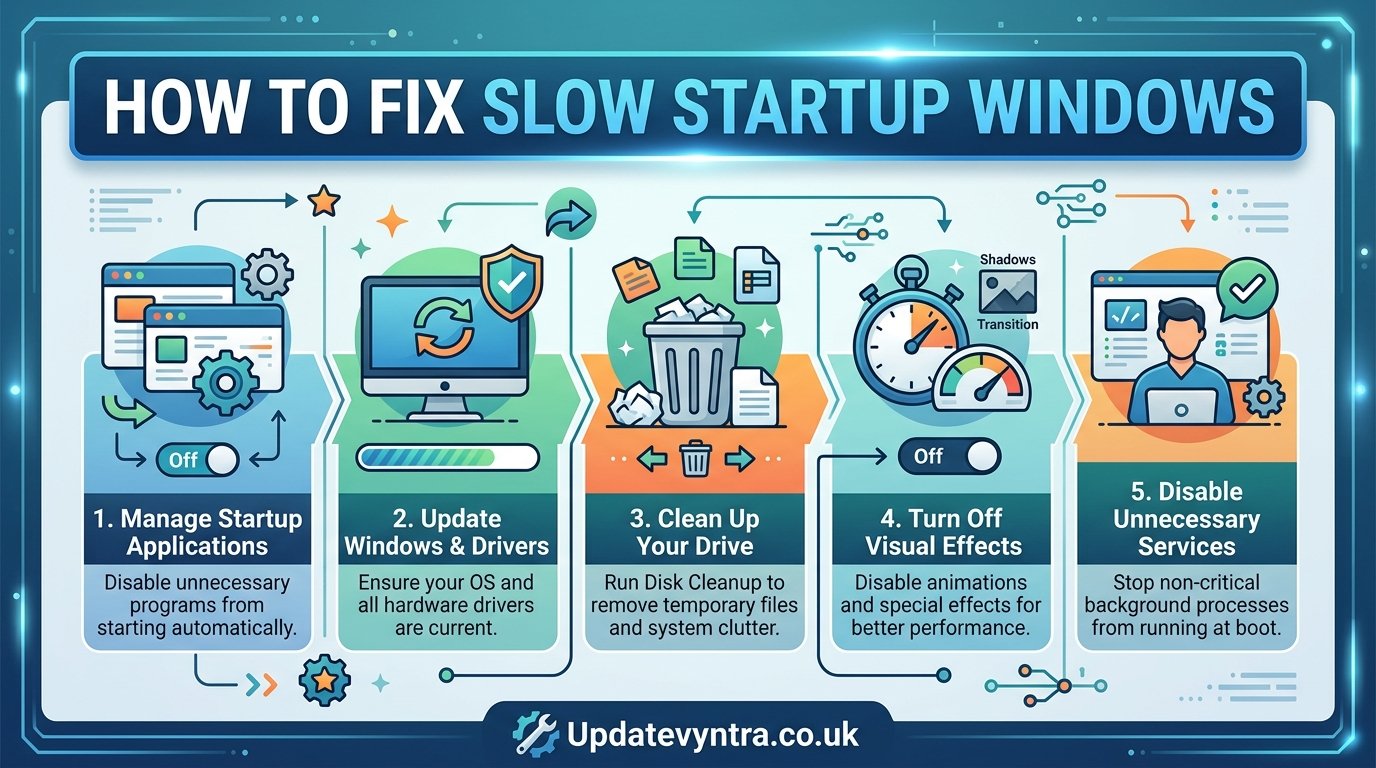
Disable Unnecessary Startup Programs
The easiest and most effective fix is reducing the number of programs that launch when Windows starts.
Open Task Manager by pressing Ctrl + Shift + Esc, then click the Startup Apps tab. Here you’ll see a list of applications that automatically start with Windows.
Disable programs that you don’t need immediately after booting. Examples include music apps, chat applications, game launchers, cloud software you rarely use, and update utilities.
Only disable programs you recognize. Leave antivirus software and essential Windows services enabled.
Enable Fast Startup
How to Fix Slow Startup Windows: Windows includes a feature called Fast Startup that helps reduce boot time by saving part of the system state before shutdown.
To enable it:
Open Control Panel.
Go to Power Options.
Select Choose what the power buttons do.
Click Change settings that are currently unavailable.
Enable Turn on fast startup.
Save the changes and restart your computer.
This feature works especially well on computers with SSD storage.
Free Up Storage Space
How to Fix Slow Startup Windows: Windows performs better when your system drive has enough free space. If your C: drive is almost full, startup can slow down considerably.
Delete unnecessary files, empty the Recycle Bin, uninstall unused programs, and move large files such as videos or photos to another drive or cloud storage.
Windows also includes Storage Sense, which automatically removes temporary files and helps keep storage optimized.
Scan for Malware
How to Fix Slow Startup Windows: Malware often runs hidden processes during startup, slowing down your computer.
Run a full system scan using Windows Security or another trusted antivirus program. Removing malicious software can significantly improve startup speed while also protecting your data.
Update Windows and Drivers
How to Fix Slow Startup Windows: Outdated drivers can increase boot time or create compatibility issues.
Install the latest Windows updates and update important drivers, including graphics, storage, chipset, and network drivers. Manufacturers regularly release performance improvements that help Windows boot more efficiently.
Reduce Background Services
How to Fix Slow Startup Windows: Many applications install background services that continue running even when you’re not using the software.
Open System Configuration by typing msconfig into the Start menu.
Under the Services tab, hide Microsoft services before reviewing third-party services.
Disable only services that belong to software you no longer use.
Avoid disabling Microsoft services because doing so may cause Windows to become unstable.
Check Your Hard Drive
How to Fix Slow Startup Windows: If your computer uses a traditional hard disk drive, checking its health is worthwhile.
Windows includes built-in tools that scan for drive errors.
Open Command Prompt as Administrator and run:
chkdsk /f
If Windows finds file system errors, repairing them may improve startup speed.
If your hard drive is making clicking sounds or frequently freezes, it could be failing and may need replacement.
Upgrade to an SSD
How to Fix Slow Startup Windows: If you’re still using a hard disk drive, upgrading to a Solid State Drive (SSD) is one of the biggest improvements you can make.
Unlike HDDs, SSDs have no moving parts, allowing Windows to load dramatically faster. Many computers that take over a minute to boot with an HDD can start in under 20 seconds after switching to an SSD.
Although upgrading requires purchasing new hardware, it’s often much cheaper than buying a new computer.
Increase RAM
If your computer constantly runs out of memory during startup, adding more RAM can improve overall responsiveness.
For everyday use, 8 GB of RAM is generally comfortable, while 16 GB provides even smoother multitasking.
Additional memory allows Windows to load startup processes without constantly relying on slower disk storage.
Uninstall Unused Software
How to Fix Slow Startup Windows: Many installed programs add scheduled tasks, services, or background processes even if you rarely use them.
Go through your installed applications and remove software you no longer need.
Less installed software usually means fewer startup tasks and better overall performance.
Perform a Clean Boot
How to Fix Slow Startup Windows: A clean boot starts Windows using only essential Microsoft services.
This helps determine whether third-party software is causing slow startup.
If Windows starts much faster during a clean boot, you can gradually re-enable services until you identify the program responsible for the slowdown.
Optimize Your Startup Experience
How to Fix Slow Startup Windows: Sometimes startup appears slow simply because many apps continue loading after the desktop appears.
Wait a minute after signing in before launching demanding programs such as browsers, video editors, or games.
Giving Windows time to finish loading background tasks can improve responsiveness.
Additional Tips to Keep Windows Fast
How to Fix Slow Startup Windows: Fixing startup speed is only part of maintaining a healthy computer. Good maintenance habits help prevent the problem from returning.
Restart your computer regularly instead of leaving it running for weeks. Restarts clear temporary memory and allow updates to complete properly.
Keep Windows updated so you receive bug fixes and performance improvements.
Avoid installing unnecessary software, especially programs that promise to “boost” or “clean” your PC. Many of these applications provide little benefit and sometimes slow the system even more.
Use built-in Windows tools whenever possible. Features like Disk Cleanup, Storage Sense, Windows Security, and Task Manager are designed to help maintain performance without requiring additional software.
If your computer is several years old, cleaning dust from internal components can also help. Excessive heat may cause hardware to perform less efficiently, indirectly affecting startup performance.
Finally, back up important files regularly. If Windows ever develops serious startup problems that require a reset or reinstall, you’ll have peace of mind knowing your data is safe.
Conclusion
Learning how to fix slow startup Windows doesn’t have to be difficult. In many cases, improving startup speed only takes a few simple adjustments, such as disabling unnecessary startup apps, enabling Fast Startup, freeing storage space, updating drivers, and scanning for malware.
If your computer still boots slowly after trying these methods, upgrading to an SSD or adding more RAM can provide a dramatic improvement. These hardware upgrades often make older computers feel surprisingly fast again.
Regular maintenance is the key to keeping Windows running smoothly. By managing startup programs, installing updates, maintaining enough free storage, and removing software you no longer need, you can enjoy faster boot times and a more responsive PC for years to come.
