

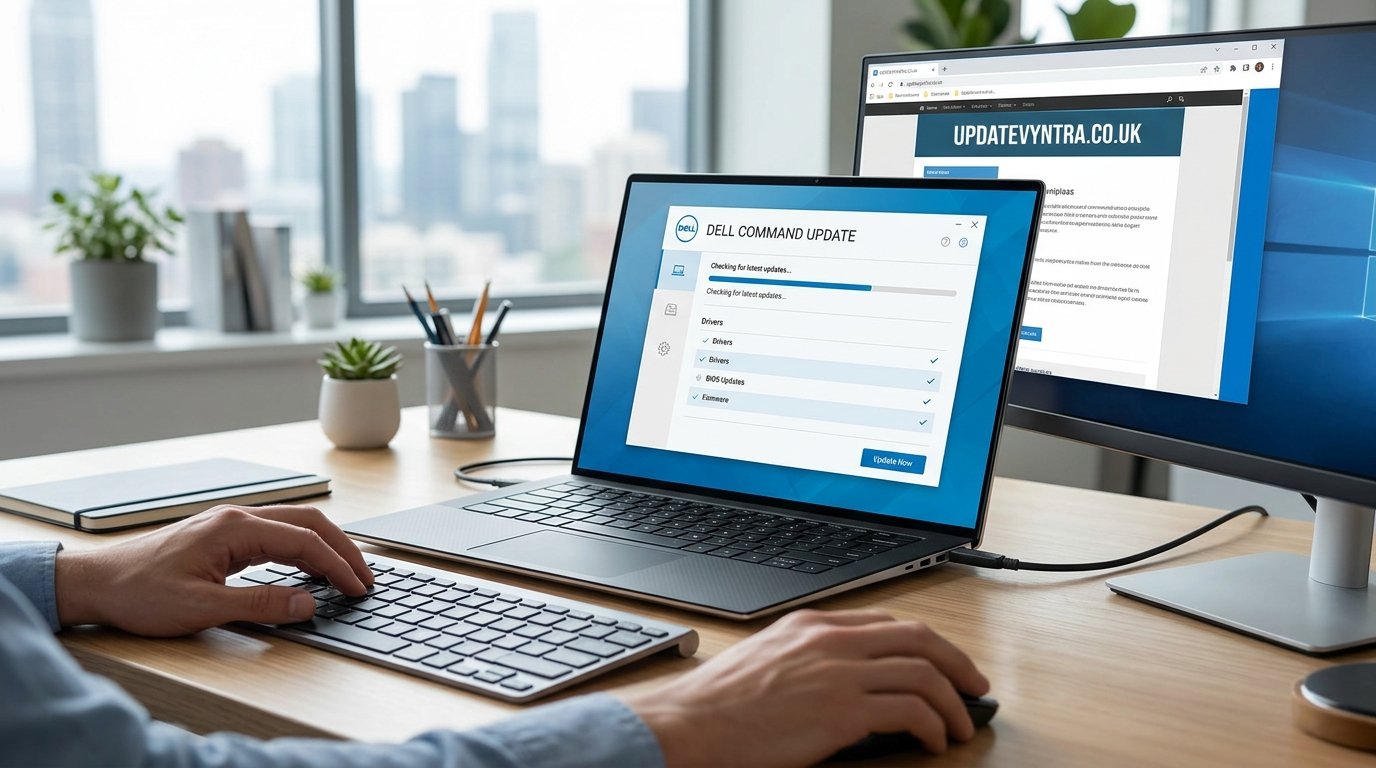
Dell computers are designed to provide reliable performance for work, study, gaming, and everyday tasks. However, even the best hardware requires regular updates to maintain stability, security, and compatibility with the latest software. Drivers, BIOS, firmware, and system applications receive updates over time to fix bugs, improve performance, and protect against security vulnerabilities. Keeping these components current is one of the simplest ways to ensure a Dell computer continues to perform at its best.
Dell Command Update is an official application created by Dell to make this process easier. Instead of searching manually for drivers or visiting multiple support pages, the software automatically detects available updates that match your Dell system. It helps users install the correct versions of drivers, BIOS updates, firmware, and Dell applications with minimal effort. Whether you own a Dell Inspiron, XPS, Latitude, Precision, OptiPlex, or Vostro device, Dell Command Update provides a convenient way to keep your computer updated and running smoothly.
What Is Dell Command Update?
Dell Command Update is a free software utility developed specifically for Dell computers running Windows. The application scans your computer, identifies installed hardware components, and compares their current software versions with the latest updates available from Dell. If newer versions are found, the utility downloads and installs them automatically or after user approval, depending on the selected settings.
Unlike downloading drivers individually, Dell Command Update verifies that every update is compatible with the exact model of your computer. This reduces the possibility of installing incorrect drivers or incompatible firmware. Because all updates come directly from Dell, users can trust that the software has been tested for stability and compatibility before release.
How Dell Command Update Works
When Dell Command Update launches, it first identifies the computer by reading the Dell Service Tag, system model, BIOS version, operating system, and installed hardware. It then connects to Dell’s update catalog and checks whether newer drivers, firmware, BIOS versions, or Dell software packages are available for that specific configuration.
After the scan is complete, the application displays available updates along with their categories and descriptions. Users can review the recommended updates before installation or configure the software to install them automatically. Once approved, Dell Command Update downloads the required files, installs them in the proper order, and requests a restart if necessary. This automated process removes much of the complexity involved in maintaining a Dell system.
Features of Dell Command Update
One of the biggest strengths of Dell Command Update is its ability to manage multiple types of updates from a single application. It supports driver updates for graphics cards, network adapters, Bluetooth devices, audio hardware, touchpads, storage controllers, and chipset components. It also installs BIOS updates, firmware improvements, Dell utilities, and security-related system updates whenever they become available.
The application also includes scheduling features that allow users to automate routine maintenance. Instead of remembering to check for updates manually, scans can run at regular intervals. Users can customize notification settings, choose whether updates install automatically, and review release notes before making changes. These options make the software suitable for both beginners and experienced users who prefer greater control over system maintenance.
Benefits of Keeping Your Dell Computer Updated
Installing the latest updates offers several important advantages beyond simply adding new software versions. Updated drivers often improve communication between Windows and hardware components, resulting in better performance, fewer system crashes, and improved compatibility with newly released applications. Wireless adapters may receive connection improvements, graphics drivers may increase display stability, and storage drivers can enhance data reliability.
Security is another major reason to install updates regularly. BIOS updates and firmware improvements often include fixes for newly discovered vulnerabilities that could affect system security. Driver updates may also resolve software conflicts that lead to unexpected errors or reduced system stability. By keeping every component current, users lower the risk of compatibility issues and create a more dependable computing experience.
Installing and Using Dell Command Update
Installing Dell Command Update is a simple process for supported Dell computers. After downloading the installer from Dell’s official support page, users complete a short installation process and launch the application. During the first scan, the software analyzes the computer and identifies any available updates that match the hardware configuration.
Once updates appear, users can choose to install all recommended updates or review them individually. Most driver updates install quickly without requiring much user interaction, while BIOS updates generally require a restart to complete. During BIOS installation, it is important to keep the computer connected to a reliable power source and avoid interrupting the update process. Following these recommendations helps ensure a successful installation.
Dell Command Update for Business and Enterprise Users
Dell Command Update is widely used in business environments because it simplifies computer maintenance across multiple devices. Organizations often manage dozens or even hundreds of Dell systems, making manual driver updates time-consuming and difficult. By using Dell Command Update, IT administrators can maintain consistent driver versions and firmware across their fleet of computers.
Consistent updates improve reliability throughout an organization by reducing compatibility issues and simplifying technical support. Standardized driver versions make troubleshooting easier because every system operates using approved software. Regular maintenance also minimizes downtime caused by outdated drivers or firmware problems, allowing employees to remain productive while reducing support costs.
Common Issues and Their Solutions
Although Dell Command Update is designed to operate smoothly, users may occasionally experience issues such as scan failures, download interruptions, or updates that fail to install. In many cases, restarting the computer and running another scan resolves temporary problems. A stable internet connection is also important because interrupted downloads can prevent successful installations.
Some users may notice that certain updates continue appearing even after installation. This usually occurs when Windows has not completed its restart process or when another software component requires updating first. Reinstalling Dell Command Update or installing the latest Windows updates often resolves these issues. If a specific update repeatedly fails, checking Dell’s support documentation for that device can provide additional guidance.
Best Practices for Maintaining a Dell System
Using Dell Command Update regularly is one of the easiest ways to keep a Dell computer performing well over time. Monthly update checks are sufficient for most home users, while businesses often schedule automatic scans more frequently. Regular maintenance ensures that drivers, firmware, and BIOS versions remain current without requiring constant manual attention.
Before installing major BIOS or firmware updates, creating a backup of important files is always a sensible precaution. Although update failures are uncommon, having a recent backup protects valuable documents and personal data. Users should also avoid shutting down the computer during BIOS installation and ensure laptops remain connected to AC power throughout the process to prevent interruptions.
Compatibility and System Requirements
Dell Command Update is designed specifically for supported Dell desktops, laptops, and workstations running Windows. It works with many popular Dell product families, including Inspiron, XPS, Latitude, Precision, OptiPlex, Vostro, and Alienware systems that are officially supported. Because the application communicates directly with Dell’s update catalog, it provides only the drivers and firmware validated for the detected system.
Older Dell computers may eventually stop receiving new driver releases as hardware reaches the end of its support lifecycle. Even in these cases, Dell Command Update remains useful for identifying the latest compatible software available for that model. Users should always install updates offered through the application rather than downloading drivers intended for different Dell systems, as compatibility is an important part of maintaining long-term reliability.
Conclusion
Dell Command Update is one of the most useful maintenance tools available for Dell computer owners. It simplifies the process of finding, downloading, and installing official drivers, BIOS updates, firmware improvements, and Dell software by automatically detecting the correct updates for each system. This saves time while reducing the risk of installing incompatible software that could affect performance or stability.
Regular updates help improve security, hardware compatibility, system reliability, and overall performance. Whether you use a Dell laptop for school, a desktop for work, or a workstation for professional tasks, keeping your device updated is an essential part of long-term maintenance. By using Dell Command Update consistently, users can enjoy a smoother, safer, and more dependable computing experience while ensuring their Dell system remains ready for future Windows updates and evolving hardware requirements.
